
This week we’re taking a look at some common types of backups that businesses may make, from simple USB thumb-drive backups through to enterprise level tape backups and on to Backoops cloud based backups.
USB

Small USB memory sticks are a very cheap and easy way to keep a local portable backup of your files. They do however have their pitfalls, the backup process is manual and they are very easy to lose or be stolen. They also only have a limited life span where they can fail without warning making the data that was held on them unrecoverable without significant cost. Being a physical device you need to keep it safe and with you if you need to restore any files.
Pros
- Affordable
- Small and portable
- Can be removed from the system
Cons
- Backups are not automatically taken
- No ransomware protection if the USB drive is connected to the system
- Limited life span of the USB memory
- Cheaper drives can be very slow, especially with lots of small files
- Because of the size they can be easily lost or stolen
- Only protects files and folders not the entire system
- Unlikely to have encryption
External drive
An external hard drive can be used to backup your files and folders, the problem with external hard drives is they are usually mechanical and can suffer if they are knocked or bumped whilst being used. You also have to have the hard drive with you if you wish to restore any files back to your computer or back it up when out of your office.
Pros
- Affordable
- Small and portable
- Can be removed from the system
Cons
- Usually backups are not automatically taken
- No ransomware protection if the drive is connected to the system
- Because of the size they can be easily lost or stolen
- Only protects files and folders not the entire system
- Unlikely to have encryption
Cloud Drive (DropBox, Google Drive etc.)
Cloud drives can be handy for storing a copy of your data where it can be accessed and edited from from multiple locations whilst it is a copy of your data it does not protect you from accidentally deleting files or malicious activity which could happen if your login credentials for the service are compromised.
Pros
- Online service files can be accessed from anywhere in the world
- No size limits
Cons
- Temptation to use as the “live” copy of your data and forget to make a backup
- Only a backup if you maintain a copy of data outside of the service as well
- File changes are automatically synced with no retention policy
- No ransomware protection, if your files are encrypted in an attack it will be synced to the online service as well
- Only protects selected files and folders not the entire system
Tape
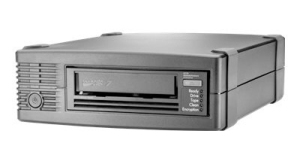
Tapes are aimed at business users with large volumes of data to backup or archive. They provide a relatively high storage capacity in a compact format for a relatively low cost per TB and with a high backup speed. Tape drives tend to come at a high cost and require maintenance along with the tapes themselves to keep them functioning optimally.
Pros
- High capacity
- Relatively affordable storage media
- High speed
Cons
- Tape drives can be expensive
- Requires regular maintenance
- Tapes need careful storage, ideally offsite
- Not easy to access small amounts of data quickly
Snapshots
Snapshots are a record of what a storage device looked like at a specific point in time, much like taking a picture of something. Whilst they are technically a form of backup, they often tend to be stored on the same systems as the live data, so only provide a backup under certain circumstances unless they are copied to an external system/location.
Pros
- Quick and easy to perform
- Little extra storage space needed
- Can restore a whole system quickly under certain conditions
Cons
- Not a backup against all situations unless copied externally
- Not easy to retrieve small amounts of data from e.g. Restore the minutes from last week’s sales meeting
- Only generally available on storage systems e.g. NAS/SAN or virtualisation/cloud platforms
Backoops – Secure partition
This can be setup using the Backoops software and allows you to create a secure partition (area) on any storage device on your system. This is a handy way of backing up your entire system in an automated fashion and could be beneficial to people who are travelling to remote locations where they do not have access to the internet.
It may also be paired with online replication so that when the system connects to the internet the changes are synced and stored in the cloud. You can also control how long you wish to keep your backups with powerful retention policies.
Pros
- Automated backups
- Can be synced to the cloud for additional protection
- Retention policy can be fully adjusted to suit your needs.
- Ransomware protection as standard
- Easy encryption of backups
Cons
- Does not protect against drive failure
- Does not protect you against theft (unless synced to the cloud)
Backoops – Automated online incremental
Online incremental backups used by Backoops are backups that can protect your entire system. They can backup everything that is contained on the system’s hard drive(s). With this kind of backup you can restore your system to a previous state if you were to suffer a hard drive failure or a catastrophic system crash. You can also restore the system to new hardware.
Pros
- Automated backups
- Retention policy can be fully adjusted to suit your needs.
- Ransomware protection as standard
- The full system is backed up and can be restored in the event of theft or hardware failure
- Full backup reports via email so you know your data is secure.
- Restore files and folders to a new or an original system at the click of a button through any web browser
- Fast, as only data that has changed needs to be backed up
- Easy encryption of backups
Cons
- You must be connected to the internet to perform the backup
Backoops – Automated online incremental with CDP
This backup is the same as the automated incremental but gives you the added benefit of Continuous Data Protection (CDP). CDP allows you to select file types e.g. PDF, Word, Excel etc. and/or folders which need every change backed up. For example this could be a documents folder or an images folder. All changes to files or folders selected will be synced up to your backup.
Pros
- Backup all changes made to critical files and folders
- Automated backups
- Retention policy can be fully adjusted to suit your needs.
- Ransomware protection as standard
- The full system is backed up and can be resorted in the event of theft or hardware failure
- Full backup reports via email so you know your data is secure.
- Restore files and folders to a new or an original system at the click of a button through any web browser
- Easy encryption of backups
Cons
- You must be connected to the internet to perform the backup
One more important thing to remember is that no matter which method you use, it shouldn’t be considered a backup unless you’re regularly testing it to make sure it restores your data as you’d expect. Many people have lost data over the years due to assumptions about having configured their backups correctly – please don’t let it be you.